


Filmora: AI Video Editor&Maker
4.023.11K Reviews
App Specs
- Version
- 15.6.60
- Updated On
- License
- Free
- Downloads
- 100,000,000+
- Developer
- Wondershare Filmora
- Categories
- Video Players & Editors
- Platform
- Android, iOS
Screenshots
 Analysis by AppCompare
I like Filmora: AI Video Editor&Maker most as a shortcut from a phone full of clips to a finished, shareable video. It puts familiar editing tools alongside AI-assisted options, so I can get a quick result without learning a desktop-style editing suite first. That convenience is the appeal, though I would not mistake it for a replacement for careful, detailed work on a larger screen.
Where a phone-first workflow helps
On a typical day, I might want to turn a few short clips and photos from a family outing into something worth sending to relatives. A template gives me a starting structure, while the timeline lets me trim a clip that runs too long or move a moment into a better place. That combination is useful when I care about the story but do not want to build every transition and title from scratch.
The same approach suits a small creator making a quick vertical post, a student assembling a simple project, or someone who wants to add music and captions to a collection of memories. I would begin by choosing the destination and rough length, then import only the footage I expect to use. It is easier to make purposeful choices with a compact selection than to sort through an entire camera roll inside an editing session.
Filmora is a free app in the video editing category, developed by Wondershare Filmora. It has a 4.0 average from around 1.1 million ratings, and has passed 100 million installs. Those figures suggest broad reach, but they do not guarantee that its workflow will suit every editor; my recommendation depends more on whether you value quick, guided creation over fine-grained control.
Making templates work for your footage
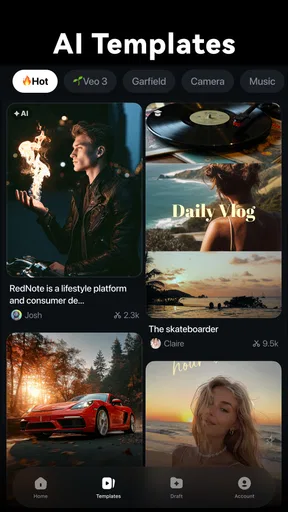
The app offers a variety of templates to kickstart your creativity. Whether you're crafting a birthday montage or a travel vlog, there’s a template ready to go. I found these templates handy, especially when I needed a quick start for a last-minute video project. You can easily customize each template to fit your personal style, which is a game-changer for those who want a unique touch.
A practical tip is to treat a template as a rough edit rather than a finished decision. Check whether its pacing gives important moments enough room, and replace any clip that feels out of place instead of forcing your footage to match the preset. A montage can look lively while still rushing past the one moment you actually wanted to preserve.
Once your template is selected, importing media is a breeze. Just a few taps and your photos and videos are in the editor, ready to be transformed. The drag-and-drop functionality is smooth, making adjustments quick and hassle-free.
Worth Reading Before You Choose

Flipboard Shows What News Apps Must Do Beyond the Feed

Switching to Android Auto Means Rethinking Your Driving Routine

Google Calendar Makes a Crowded Week Easier to Manage

Ludo King Makes the Most of the Minutes Between Plans

Baby Panda World Brings Quick Play to Modern Phones, but Its Game Library Feels Busy

ESPN’s Live Game View Makes Following Close Games Easier
For a cleaner result, I would import and arrange clips in the order the viewer should understand them, then trim pauses before adding decorative effects. That order of operations makes it easier to spot whether the video has a coherent beginning and ending. It also prevents a common mobile-editing trap: spending time on transitions before deciding whether the underlying sequence works.
First Impressions
Filmora: AI Video Editor&Maker greets you with a sleek, user-friendly interface. No overwhelming buttons or cluttered screens here—just straightforward navigation. The setup feels intuitive, making it easy to dive into your first project without a steep learning curve. For beginners and seasoned editors alike, this is a huge plus.
AI as an assistant, not an editor-in-chief
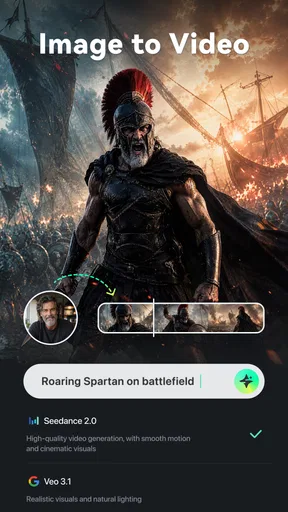
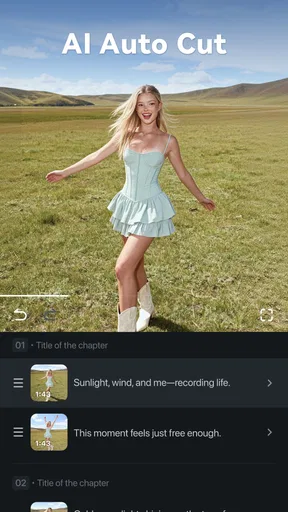
The AI tools are most valuable when they remove repetitive work or offer a starting point. The app’s AI-centered editing options can help make a project feel less daunting, but I would still review every suggested choice. Automated edits cannot know which expression, reaction, or small detail matters most to you, and a technically smooth cut can still miss the emotional point of a clip.
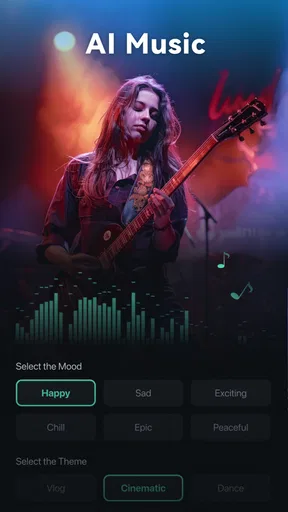
This is also where it helps to keep expectations realistic. AI audio assistance can be convenient when a clip’s sound needs attention, but it should not be treated as a guarantee that every recording will become clean or balanced. If speech is central, listen through the export with headphones and check that music does not overpower the voice. A quick pass like this is more useful than assuming an automatic adjustment has solved every problem.
One feature I particularly enjoyed was the AI-driven effects. These effects can be applied with a single tap, giving your videos a professional sheen without the effort. Whether it's adding transitions or enhancing colors, the AI does the heavy lifting, leaving you with more time to focus on storytelling.
There is a trade-off to one-tap polish: effects can make unrelated clips feel more consistent, but using too many can make a personal video feel like a preset demonstration. I would choose one visual direction and apply effects selectively, especially to clips that need a little lift. Keeping some natural footage untouched can give the edited moments more impact.
Control when the quick route is not enough
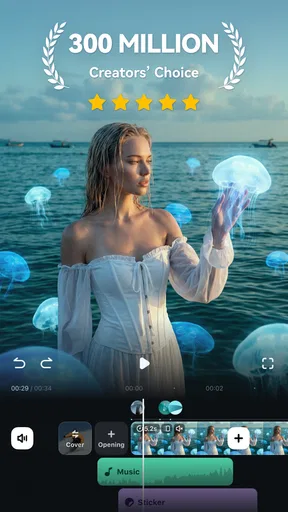
Don't be fooled by its simplicity; this app packs a punch. You have access to a robust set of tools—trim, cut, merge, and splice your videos with precision. Adding text, stickers, and music is straightforward, allowing for creative expression without the headache. I spent some time playing with the transitions and was impressed by the variety and smoothness of each effect.
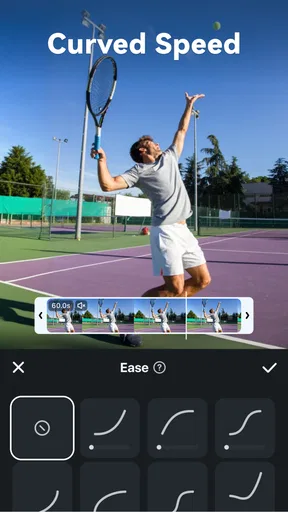
The timeline feature is particularly neat, offering precise control over each edit. You can zoom in for minute adjustments or zoom out to get an overview of your project. It’s all designed to make editing as painless as possible.
That timeline is the better choice when a template makes the wrong assumption about timing. I would use the zoomed-out view to check the overall rhythm, then zoom in to trim a cut or align a title with the moment it describes. On a phone, small touches still take patience; for a long project with many precise edits, a desktop editor is more comfortable and easier to inspect at a glance.
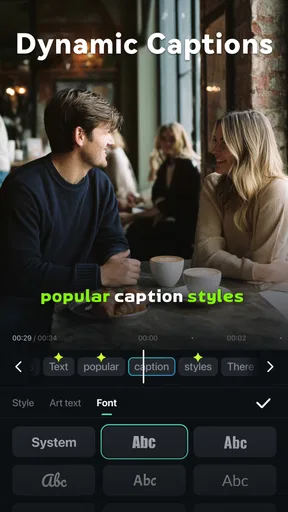
Text deserves its own review before export. A title that looks readable over one shot may disappear against a bright or busy background later in the sequence. I would preview text across the clips it covers, keep wording brief, and avoid adding labels simply because the option is available. That small check often does more for clarity than another decorative transition.
Choosing the right level of editing
Compared with a basic editor that focuses on trimming clips and joining them, Filmora gives a more guided route through templates, effects, and AI-assisted tools. That can make it a better fit when speed and visual variety matter. Compared with professional desktop software, the phone-first experience is less suited to intricate, lengthy projects where I want extensive control over layers, sound, and detailed finishing. The sensible choice depends on the job, not on which app has the longest feature list.
I would skip it if my main goal were meticulous colour work, a complicated multi-part production, or editing for hours at a time. A larger screen and a desktop workflow are simply better for those tasks. I would also avoid building a deadline around an automatic tool without checking the result: the final judgment about pacing, audio, and readability still belongs to the person making the video.
For everyday use, though, the balance is appealing. A creator who posts occasional short videos can use the guided tools to get moving, then turn to manual trimming and timeline adjustments when the first pass needs more personality. Someone who only wants to cut the start and end off a clip may find a simpler built-in editor faster; someone who wants to shape a short story without opening a computer is more likely to appreciate Filmora’s range.
Sharing, exports, and practical checks
Once you’ve crafted your video, sharing it is a cinch. The app supports direct uploads to social media platforms like YouTube, Instagram, and Facebook. I love how it automatically adjusts the video dimensions to suit each platform, taking the guesswork out of the process.
Even with automatic sizing, I would watch the finished version in the shape it will be shared. Reframing can put a face, sign, or other important detail too close to the edge, and text that works in one composition may not read as well in another. A quick preview before posting is a worthwhile final step, particularly when a template has arranged several clips for you.
For those who prefer to save videos locally, exporting is quick and preserves the quality of your work. No annoying watermarks or hidden fees here—just pure, unadulterated video goodness.
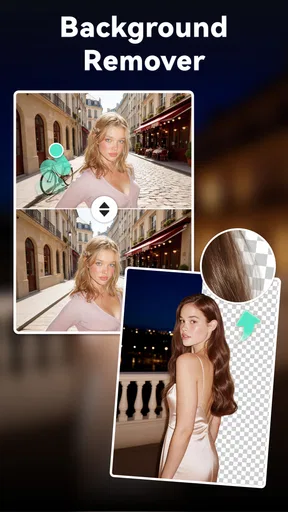
The app is free to start, with in-app purchases ranging from $0.49 to $119.99 per item, so I would check the purchase details in the app before relying on a particular paid option. Its content rating is Everyone, and the current version is 15.2.01, with Android 7.0 as the minimum operating system requirement. The app was released on December 14, 2015, and its store summary points to AI music, text-to-video, text-to-speech, automatic captions, and video effects as part of its editing focus.
Who I would recommend it to
Filmora makes the most sense for people who want a capable editor on their phone and appreciate help getting a project started. It is especially handy for a quick travel recap, a birthday montage, or a social post that needs a more deliberate sequence than a handful of raw clips. The templates lower the barrier to a first edit, while manual tools give you room to correct the places where a preset does not fit.
If you are learning, I would use a small project to explore the workflow rather than trying to edit a long video immediately. Pick a handful of clips, arrange them, add only the text or music the story needs, and watch the export from beginning to end. That process makes it easier to learn which tools save you time and which ones you would rather control yourself.
Final Thoughts
Overall, Filmora: AI Video Editor&Maker is a solid choice for anyone looking to dive into video editing without getting bogged down by complicated software. Its AI features are particularly noteworthy, offering time-saving solutions that maintain a high-quality output. While it may not replace professional editing software for high-end projects, it certainly excels for everyday use.
Whether you're a budding YouTuber, a social media enthusiast, or someone who just loves capturing memories, this app is worth a try. It’s easy to use, packed with features, and just plain fun. So, why not give it a go and unleash your inner filmmaker?
Pros
- User-friendly interface for beginners.
- Wide range of editing tools available.
- Supports multiple video formats.
- Regular updates with new features.
- Efficient AI tools for quick edits.
Cons
- Limited free version features.
- Occasional lag with large files.
- In-app purchases can add up.
- Export times can be lengthy.
- High resource usage on older devices.
FAQs for Filmora: AI Video Editor&Maker
What features does Filmora: AI Video Editor & Maker offer?
Filmora provides a wide range of features including AI-driven editing tools, an extensive library of effects and transitions, audio enhancement options, and support for multiple video formats. It also offers easy-to-use drag-and-drop functionality, making it accessible for beginners, as well as advanced features for seasoned editors.
Is Filmora: AI Video Editor & Maker suitable for beginners?
Yes, Filmora is designed to be user-friendly, catering to both beginners and experienced video editors. Its intuitive interface and step-by-step tutorials help new users get started quickly, while advanced features allow more experienced editors to create professional-quality videos.
What are the system requirements for Filmora: AI Video Editor & Maker?
Filmora is compatible with both Android and iOS devices. It generally requires a minimum of iOS 11.0 or Android 5.0, but for optimal performance, newer versions are recommended. Sufficient storage space is also necessary, especially for high-resolution video projects.
Does Filmora: AI Video Editor & Maker offer a free version?
Filmora does offer a free version with basic features, but it includes a watermark on exported videos. To access premium features and remove the watermark, users need to subscribe to a paid plan. The subscription options vary, allowing for monthly or annual payments.
Can I share videos directly from Filmora: AI Video Editor & Maker?
Yes, Filmora makes it easy to share your creations directly from the app. You can upload videos to social media platforms like YouTube, Instagram, and Facebook, or save them to your device. The app also supports various export formats to ensure compatibility with different platforms.


